
You have three apps open on the kitchen table. One shows pictures your child can tap to ask for juice. One shows the morning as a row of cards: shoes, bag, car. One shows a picture and asks your child to pick the one that goes with it. All three get called “autism apps.” They are doing three different jobs, and the question that helps is not “which is best?” but “which job does my child need done this month?”
Need one: a way to ask for things
Some children do not yet have a reliable way to tell you what they want. For them, the tools that matter most are communication tools: picture-based systems, where the child hands over or taps a picture to make a request, and speech-generating devices, which speak the word when the child taps it.
What to look for: how quickly your child can reach the picture they want, whether the tool goes where your child goes, and whether the people who spend time with your child will use it too. A communication tool only works if it is at hand at the moment of wanting. Because this need changes everyday life fastest, it is the one to settle first. Whoever supports your child’s communication (a speech-language pathologist, your Instructor) is the right person to choose the system, not an app store.
If this is where your child is, our article on functional communication training explains how a request is taught.
Need two: knowing what comes next
Some children cope with the day better when they can see it. A visual schedule is a row of pictures or objects showing what happens now and what happens next, and a timer shows how long something lasts. These are not lessons. They are support: your child is not learning matching or vocabulary, they are being told, in a way they understand, what the day holds.
What to look for: whether the pictures look like your own home and routine, whether your child can see the whole sequence or only the next step, and whether you can change it in the moment when the day does not go to plan. Many families do this with printed cards, and a printed set can serve as well as any app; we have a free set of daily routine cards. Our article on visual schedules covers how to build one.
Need three: practicing a skill
The third job is teaching: giving your child many short, well-structured chances to practice something specific, such as telling which picture goes with the one they were shown, learning the names of everyday things, or working out a relation between two things. This is the group Interlaza belongs to.
What to look for here is different from the first two. A teaching tool should make clear what it is asking of your child on each screen, adjust the help as your child gets better, and keep a record that tells you what they did on their own. It also needs an adult beside the child, which is the third of the questions below.
Five questions to ask before you choose
These work for any app, including ours. If an app cannot answer one of them, that is useful to know.
- What does it ask of my child, and what does it ask of me? A tool that needs an hour of preparation is a different commitment from one that is ready when you open it.
- Does it show what my child did without help? A score that mixes the answers your child gave on their own with the ones you prompted cannot tell you whether they can do it yet.
- Does it work with an adult beside my child? For young children, an app that expects them to work alone asks for something they may not be ready for.
- What does it cost after the trial, and what stays free? Read the pricing page before you start, not after your child has settled into it.
- What does it not claim? Be wary of “improves communication” or “clinically proven” when no study of that particular app is cited. An app that states its limits is easier to trust.
Where Interlaza fits, and where it does not
Interlaza is for the third job. A child and an adult practice matching and relations together: the app prepares a short session, chooses the material, adjusts the help, and reports in plain language what was practiced and what was newly learned. The Today screen is where each day starts, and the Progress screen gives you the week in a few sentences.
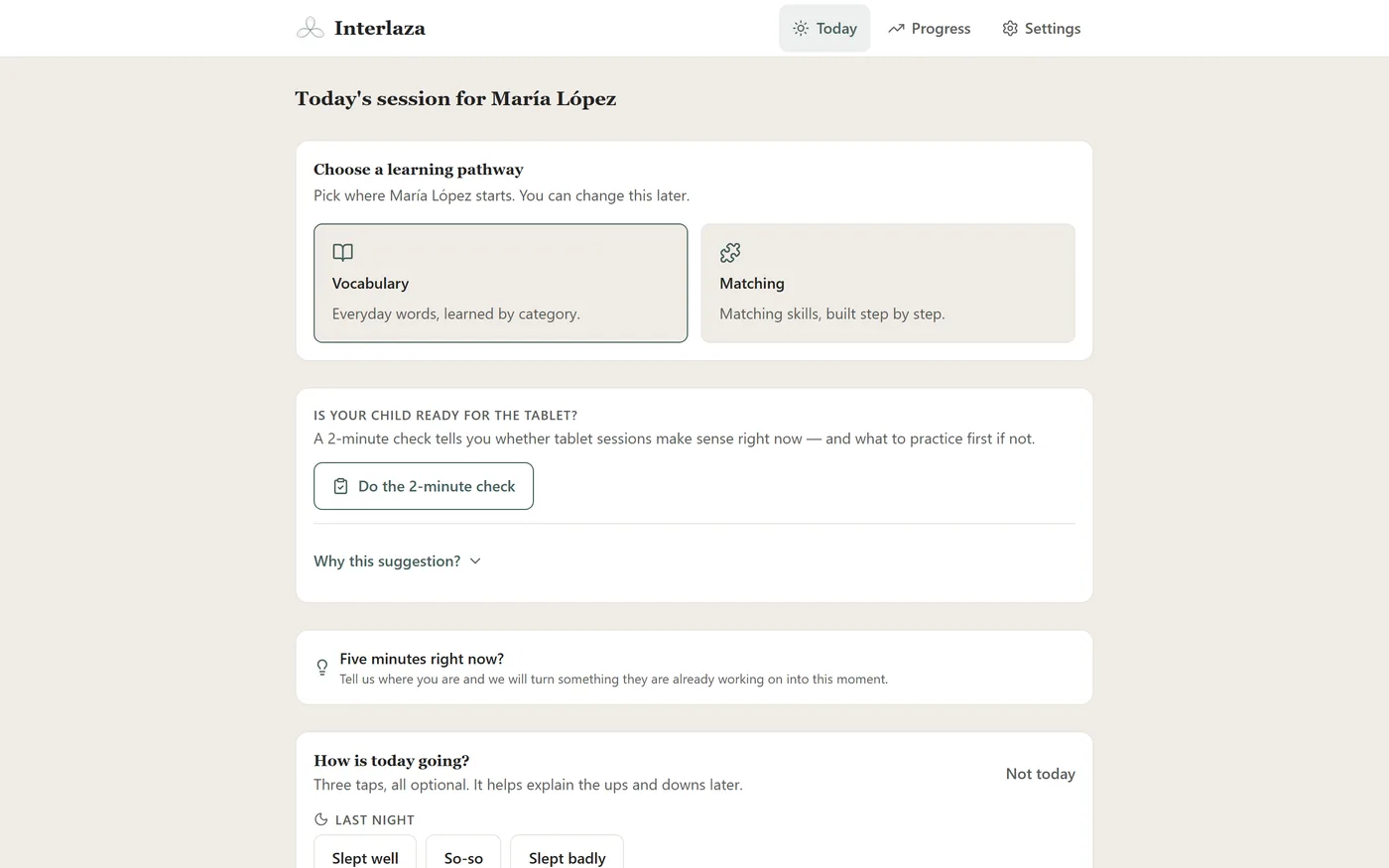
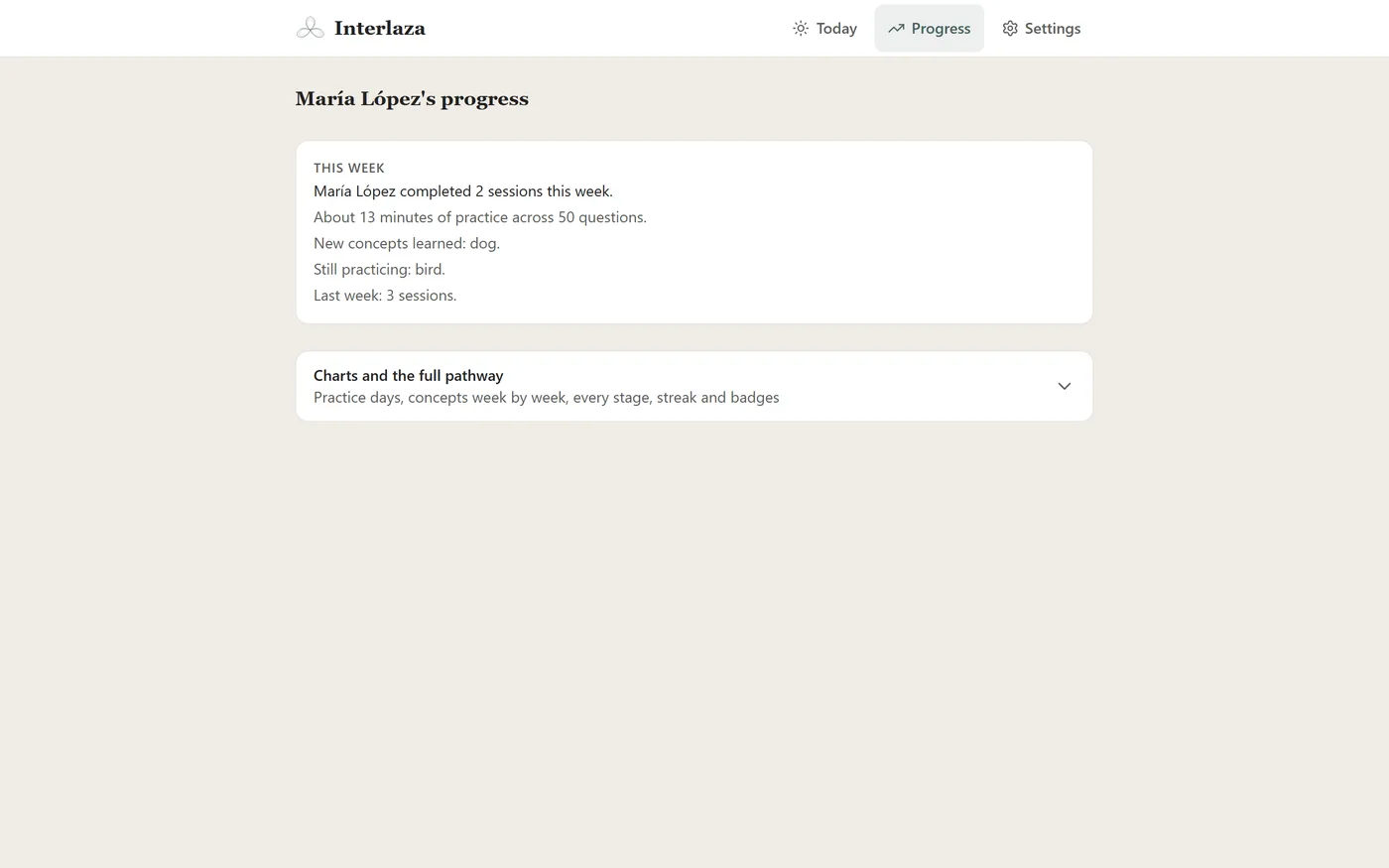
What it is not: a communication device, a visual schedule, or a treatment. It does not replace what your child’s Instructor or therapy team does, and it does not decide for you what to teach.
Try it before you decide
The quickest way to know whether it fits is to try one session yourself, without an account: the interactive demo takes about two minutes. The two-minute readiness check tells you whether sessions on a tablet make sense for your child right now, and what to practice first if not. Plans and the free trial are on the pricing page.